
Availability Rules
Weekly hours, buffers, minimum notice, date overrides, and holidays — total control over when people can book you.
PepoSmart availability rules control when invitees can book you. You set recurring weekly hours with multiple ranges per day, buffers before and after meetings, minimum booking notice, how far ahead people can book, date-specific overrides, holiday ranges, and daily, weekly or monthly meeting caps. Multiple named schedules can be assigned to different event types.
| Available on | All plans, including Free. |
|---|---|
| Requires | A connected Google or Outlook calendar for conflict checking. |
| Limits | No cap on the number of named schedules. Daily, weekly and monthly meeting limits are configurable per schedule, plus a cap on simultaneous meetings in one slot. |
| Last verified | 19 September 2026 |
Availability rules decide which slots appear on your booking page. Set your working hours once — including multiple intervals per day, like 9–12 and 2–5 — and every event you host respects them automatically, in your timezone.
The guardrails matter as much as the hours. Buffers add breathing room before and after calls, minimum notice stops last-second bookings, booking windows limit how far ahead people can grab time, and date-specific overrides and holiday blocks handle real life without touching your weekly rhythm.
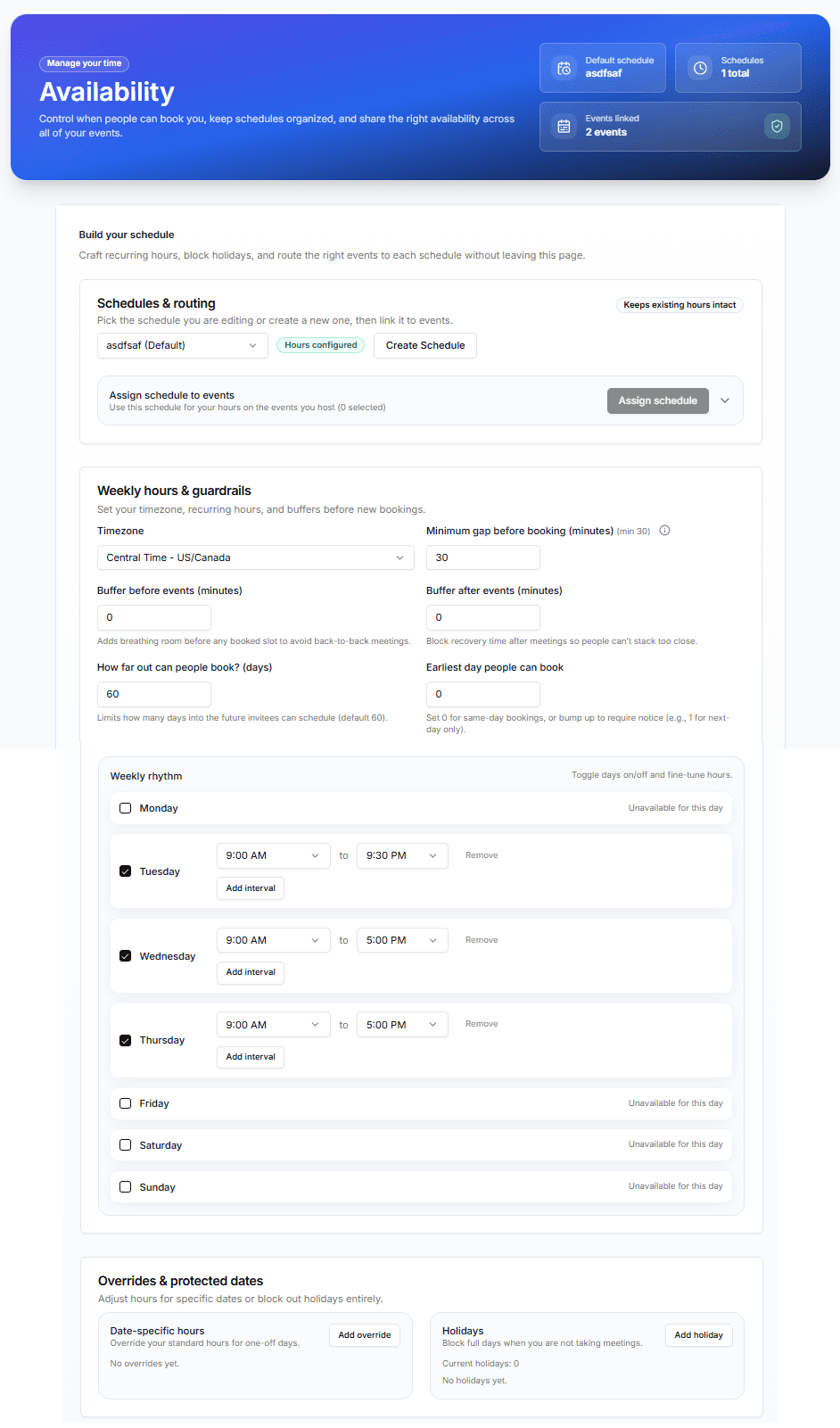
What you can do with Availability Rules
Weekly rhythm, your way
Toggle days on or off and add as many time intervals per day as you need. Tuesday 9–9:30 PM and Wednesday 9–5 can live side by side.
Guardrails against burnout
Buffers before and after events, a minimum-notice gap, and an earliest-bookable-day rule keep back-to-back marathons and 6 AM surprises off your calendar.
Named schedules, routed per event
Keep separate schedules — 'Sales hours', 'Office hours', 'Fridays only' — and assign each event (or each host on a team event) its own schedule.
How it works
- 1
Set your weekly hours
Pick your timezone, toggle the days you work, and add time intervals for each day.
- 2
Add your guardrails
Choose buffer minutes before and after meetings, minimum booking notice, and how far into the future people can book.
- 3
Handle exceptions
Add date-specific overrides for one-off days and block holidays entirely — your weekly hours stay untouched.
- 4
Assign schedules to events
Route each event type to the schedule it should follow. Team events can follow each host's own schedule.
Everything included
- Multiple named schedules (e.g. default, sales, office hours)
- Multiple time intervals per day
- Full timezone support — invitees see their local time
- Buffer minutes before and after events
- Minimum notice before a booking (e.g. 30 minutes)
- Booking window — how far out people can book (e.g. 60 days)
- Earliest-day control (e.g. next-day bookings only)
- Date-specific hour overrides for one-off days
- Holiday blocking with a per-date list
- Per-event and per-host schedule routing
What Availability Rules does not do
The limits, stated up front rather than discovered later.
- Conflicts are only detected on calendars you have connected.
- Availability is defined in your own time zone and converted for the invitee; it does not follow the invitee's working hours.
Frequently asked questions
Do availability changes apply immediately?+
Yes. When you save a schedule, your booking pages reflect the new hours right away — slot availability is recalculated for every event that uses that schedule.
Can different events have different hours?+
Yes. Create multiple named schedules and assign each event type its own. Your demo link can run 9–5 while office hours only open Friday afternoons.
What happens when I already have something on my calendar?+
PepoSmart reads busy times from your connected Google or Outlook calendar and hides those slots automatically, on top of your availability rules.
Can I block a vacation without editing my weekly hours?+
Yes — add the dates as holidays or date overrides. Your normal weekly rhythm resumes automatically when you're back.
Try Availability Rules today
The free plan includes unlimited booking pages and unlimited scheduled meetings, plus 2 AI recordings to try the notetaker.
Availability Rules is available on: All plans, including Free.
Get started freePlans, limits and integrations on this page come from our product facts registry. If anything here disagrees with that page, the product facts page is correct — please tell us at support@peposmart.com.
Related features
Unlimited Booking Pages
Create as many bookable event types as you want — even on the free plan — and share one clean link that fills your calendar.
Team Events
Invite teammates, control what each person can access, and host events together — with team-wide analytics built in.
Reminder Emails
Automatic confirmations when someone books and reminders before the call — fewer no-shows without lifting a finger.